Kom igång
Den här guiden tar dig från inloggningen till att checka in dina första gäster. Varje avsnitt länkar till artikeln som går igenom ämnet på djupet.
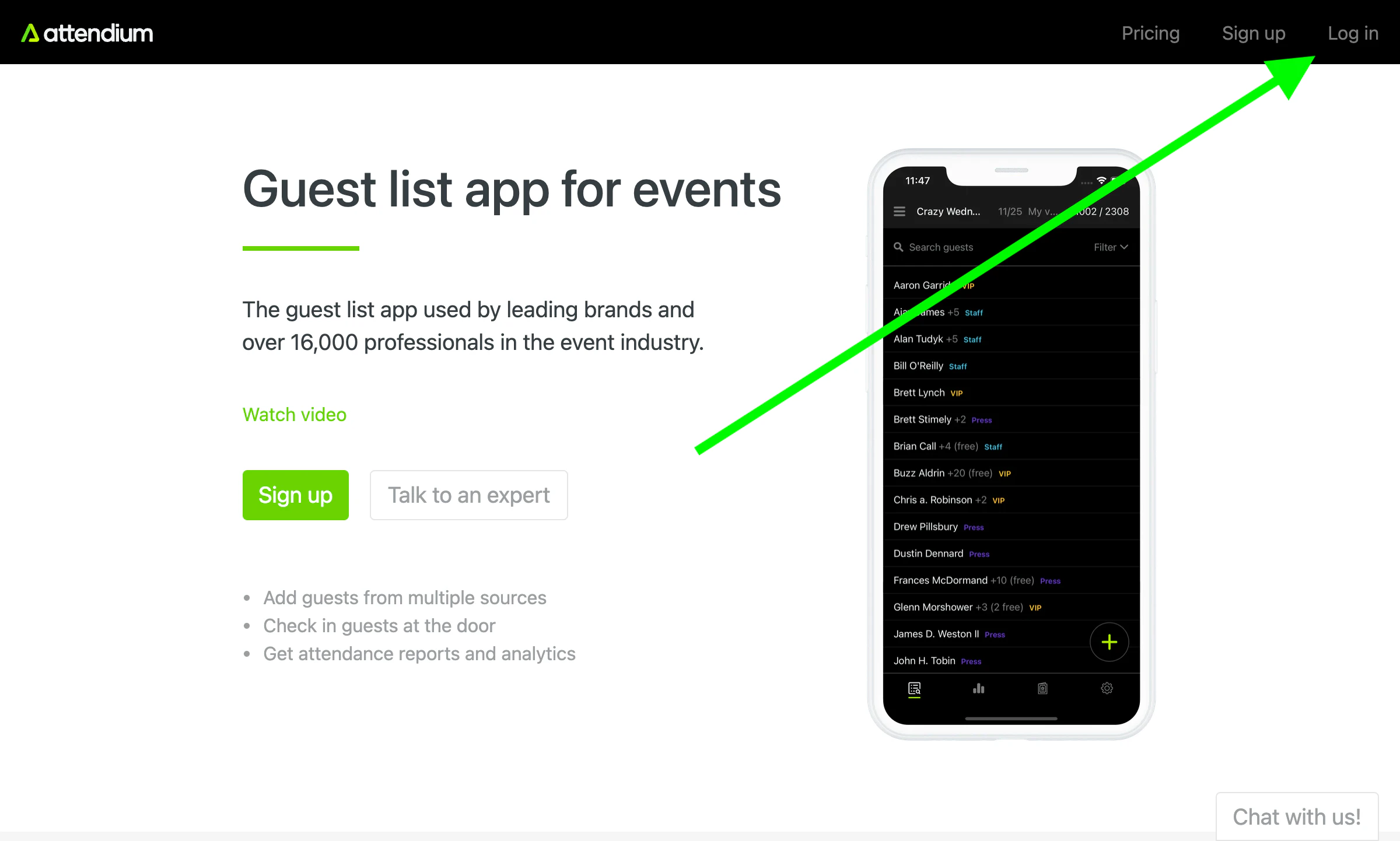
Logga in
Logga in via vår webbplats eller våra mobilappar från App Store och Google Play (se Mobilapp).
Om en kollega har skapat en användare åt dig innehåller e-postmeddelandet du fick en länk till en sida som visar ditt Användarnamn, där du skapar ett Lösenord och sedan väljer Ange lösenord. Om du har glömt ditt lösenord väljer du Glömt ditt lösenord? på inloggningssidan och anger din e-postadress eller ditt användarnamn för att få en återställningslänk. Användare som har skapats utan e-postadress ber i stället sin kontoadministratör att ange ett nytt lösenord (se Hantera användare).
Event
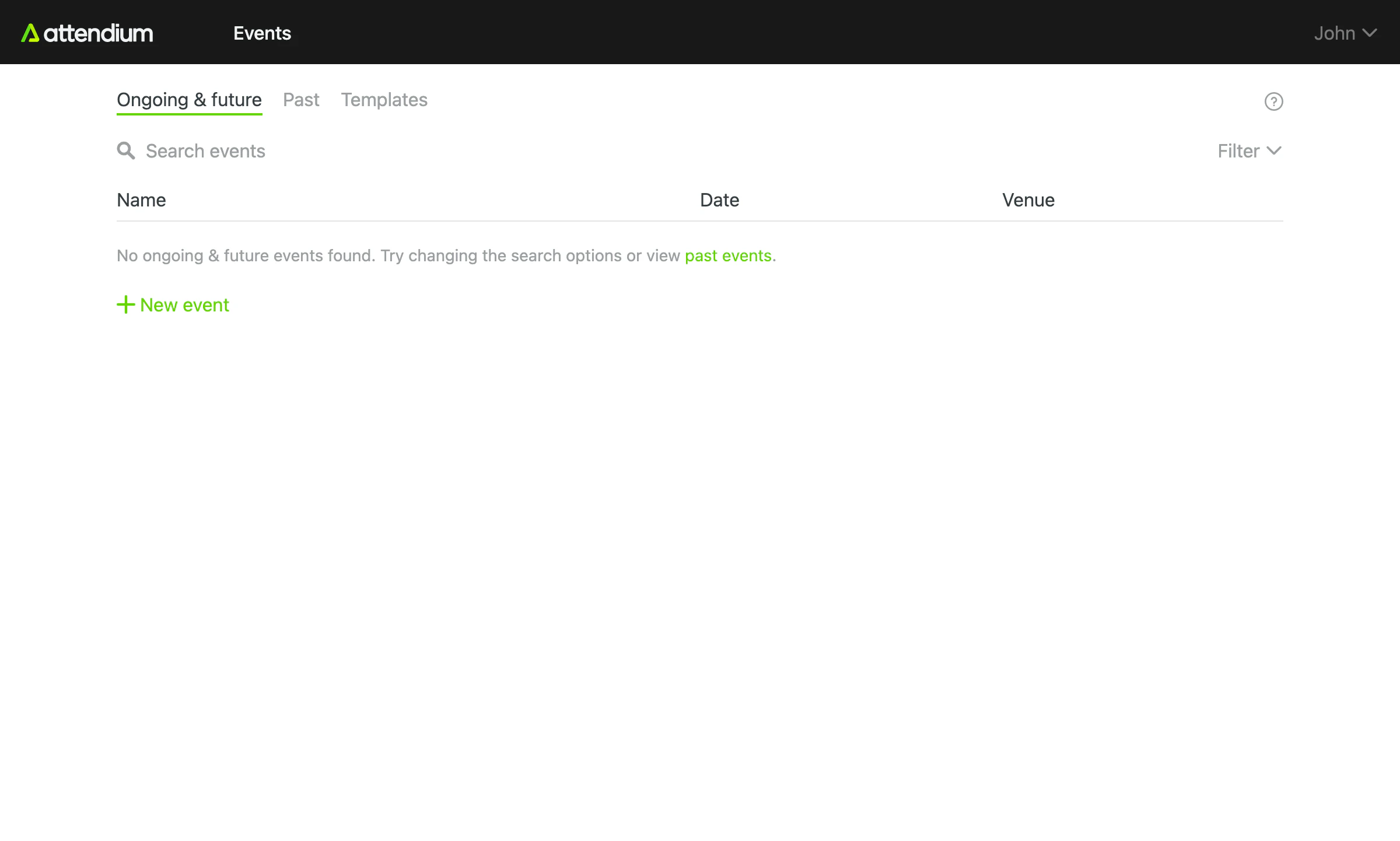
Börja med att skapa ett nytt event. När du är i eventvyn uppdateras allt du ser automatiskt, så du behöver inte ladda om webbläsaren för att se tillagda gäster eller andra ändringar.
Gästlistor
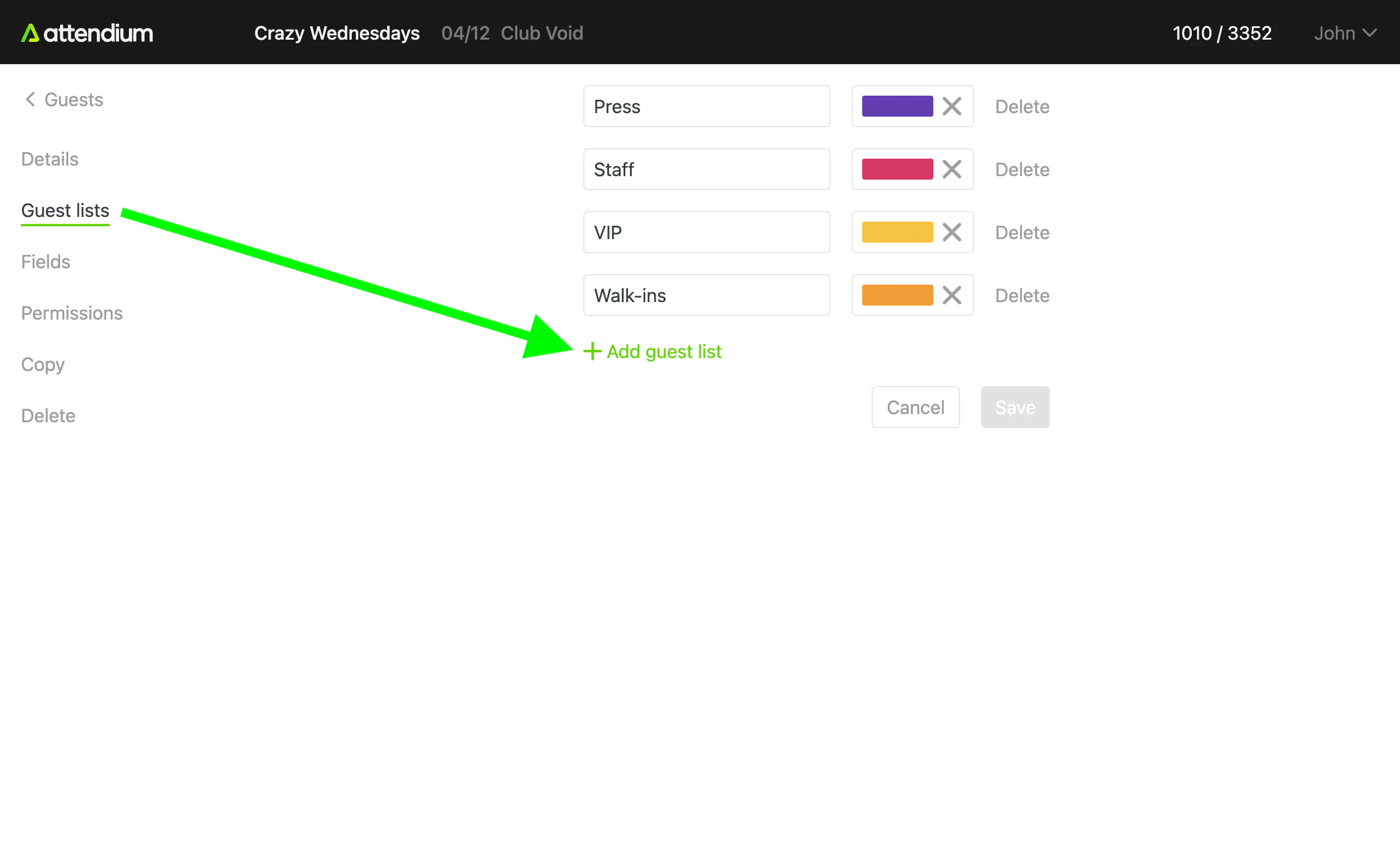
Varje event har en eller flera gästlistor där du lägger till dina gäster. Standardgästlistan heter ”Gäster”, men du kan skapa hur många gästlistor du vill och kalla dem vad du vill. Vanliga namn är VIP, Personal osv.
Gäster
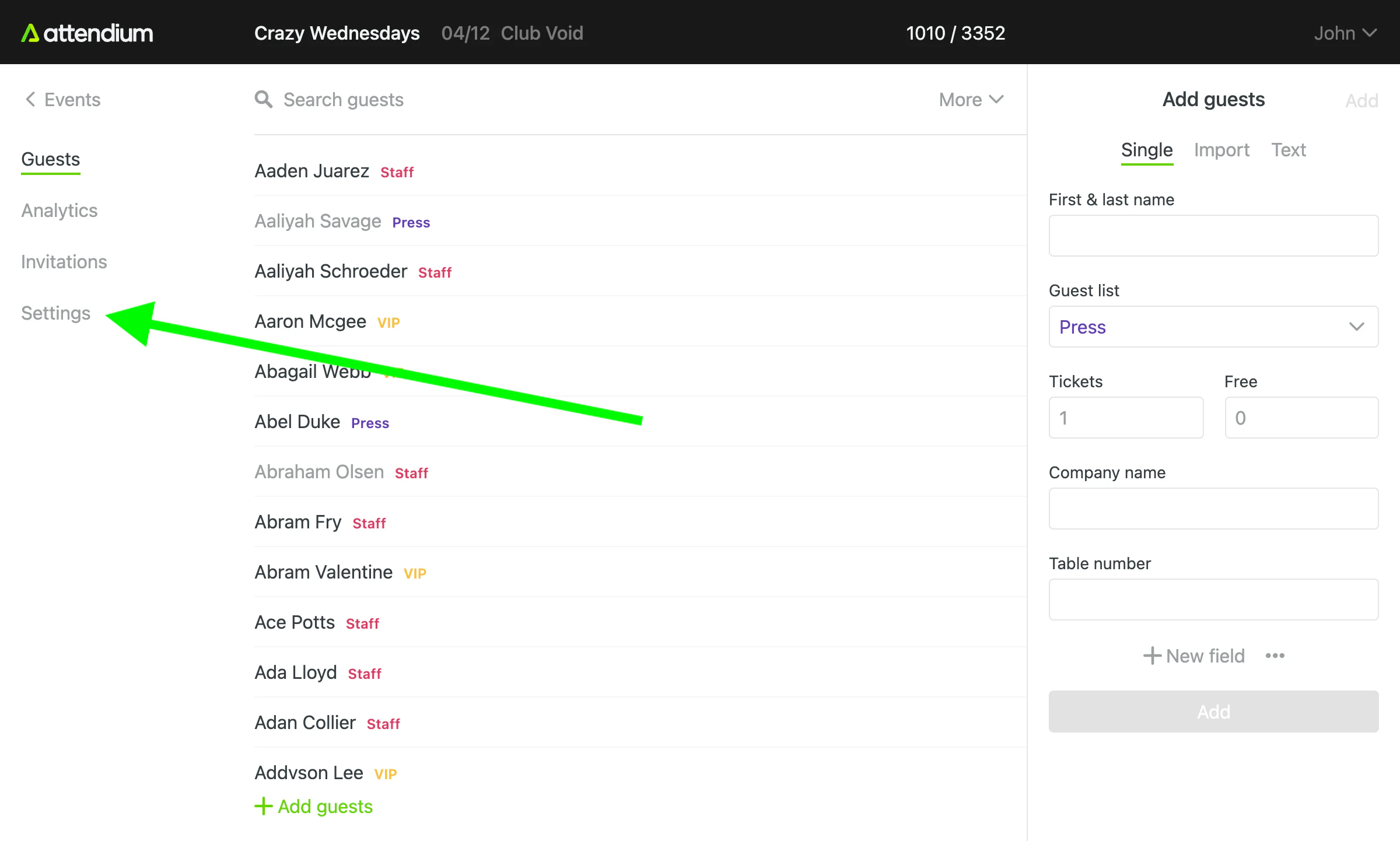
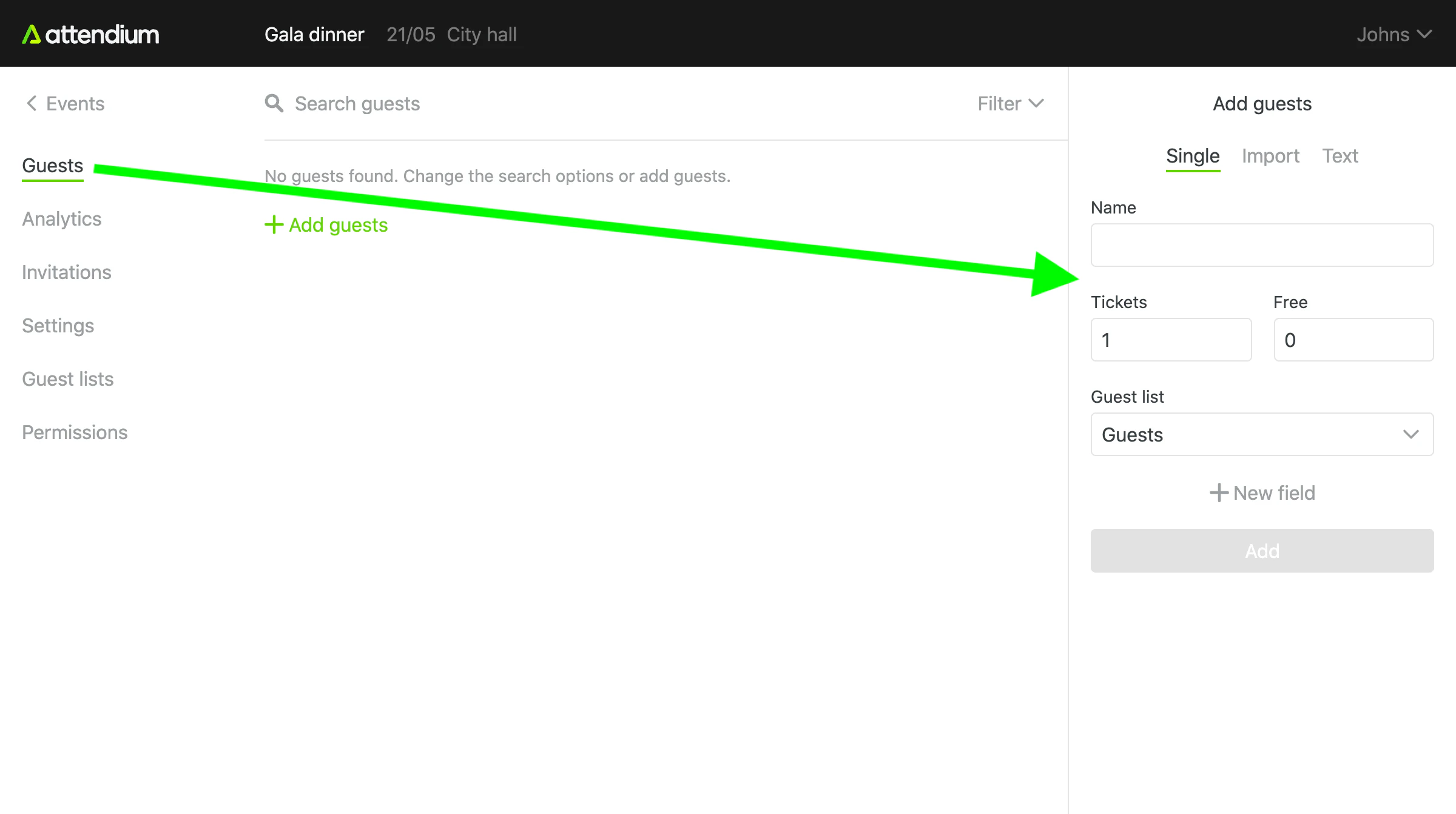
För att lägga till namn i ditt event går du till Event (huvudmenyn) > ditt event > Gäster > Lägg till gäster. Lägg till en gäst i taget under Enskild, eller lägg in en hel lista på en gång under Importera eller Text. Se Lägg till eller importera eventgäster.
Checka in gäster
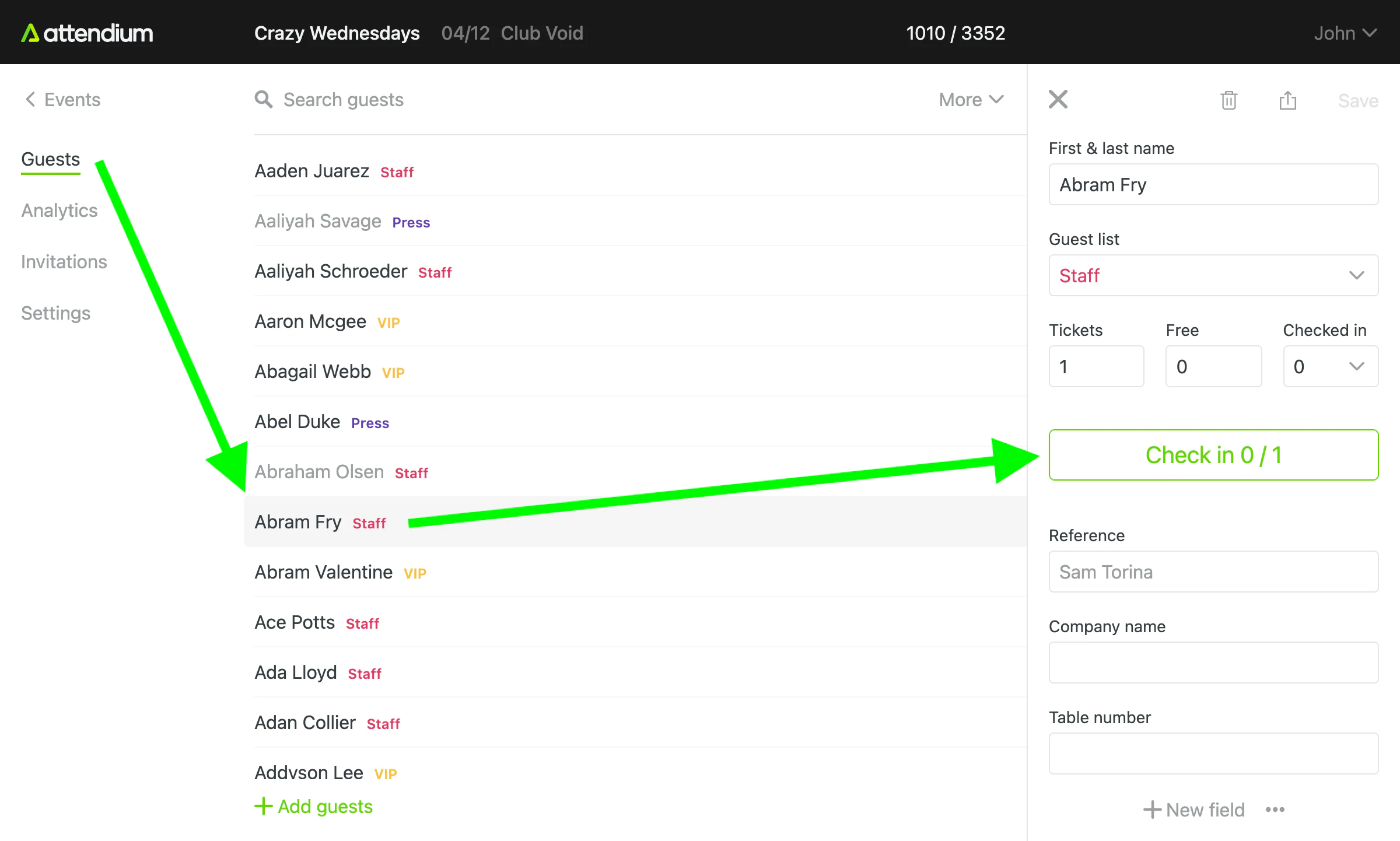
För att checka in gäster väljer du en gäst och sedan Checka in. Räknaren på knappen visar hur många av gästerna på det namnet som är incheckade, så om namnet har fler än 1 gäst väljer du Checka in en gång för varje person som kommer. Om namnet har fria gäster visas knappen Checka in gratis för dem, bredvid Checka in betalande om namnet även har betalande gäster, och varje knapp räknar sina egna gäster.
För att ångra en incheckning som gjorts av misstag väljer du gästen och sedan Redigera incheckningar, korrigerar antalet incheckade gäster och sparar. Se Sök och checka in gäster på ett event.
Analytics
Gå till Event (huvudmenyn) > ditt event > Analytics för att se gästlistetillägg och incheckningar per användare i realtid, och diagrammen för ett event. Se Visa analytics för ett event.
Gå till Analytics (huvudmenyn) för att jämföra siffror för alla event du har åtkomst till. Se Analytics.
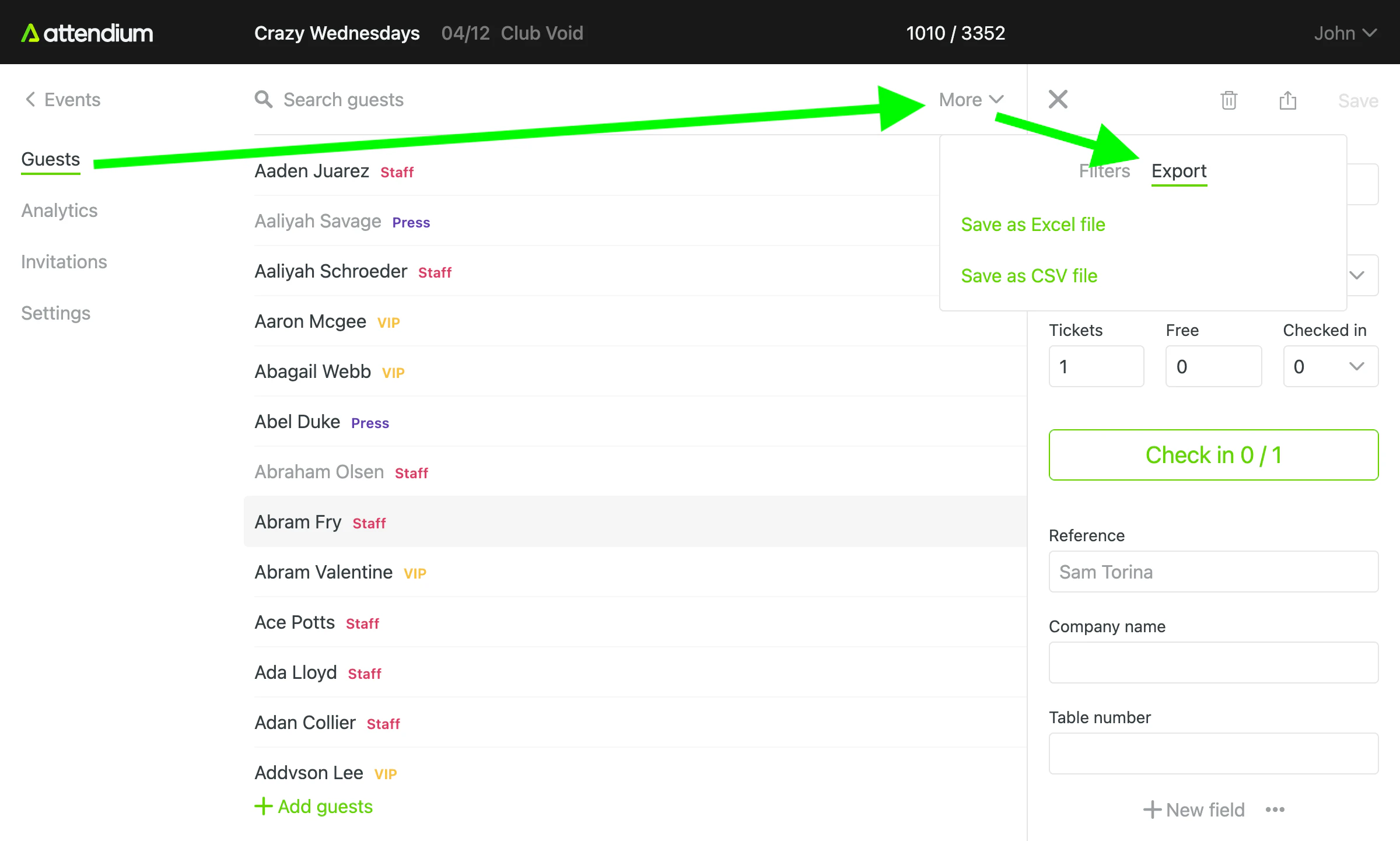
Exportera gäster
Gå till Event (huvudmenyn) > ditt event > Gäster > Exportera för att ladda ner dina gäster som en Excel-fil. Exporten innehåller bara de gäster som matchar dina aktuella filter. Se Exportera gäster från ett event.