Sharing invitations
After creating an invitation, it is essential to share it with your intended recipients. You have multiple options for sharing. Firstly, you can copy the invitation link and paste it on social media platforms, messaging apps, or any other communication channels you prefer. Alternatively, you can utilize Attendium's automatic invitation email feature to send invitations directly from the platform. To initiate the sharing process, navigate to the Share section of the specific invitation you wish to distribute:

In this section, you have various options for sharing your invitation. You can copy the link, send individual emails, or use the share dialog to send it via messaging apps like WhatsApp or other similar platforms. If you have a list of email addresses in an Excel or CSV file and want to send personalized invitations to each recipient, we recommend using the personal invitation importer. Once you have created the personal invitations, you can then utilize the mass-sendout function to share them efficiently:
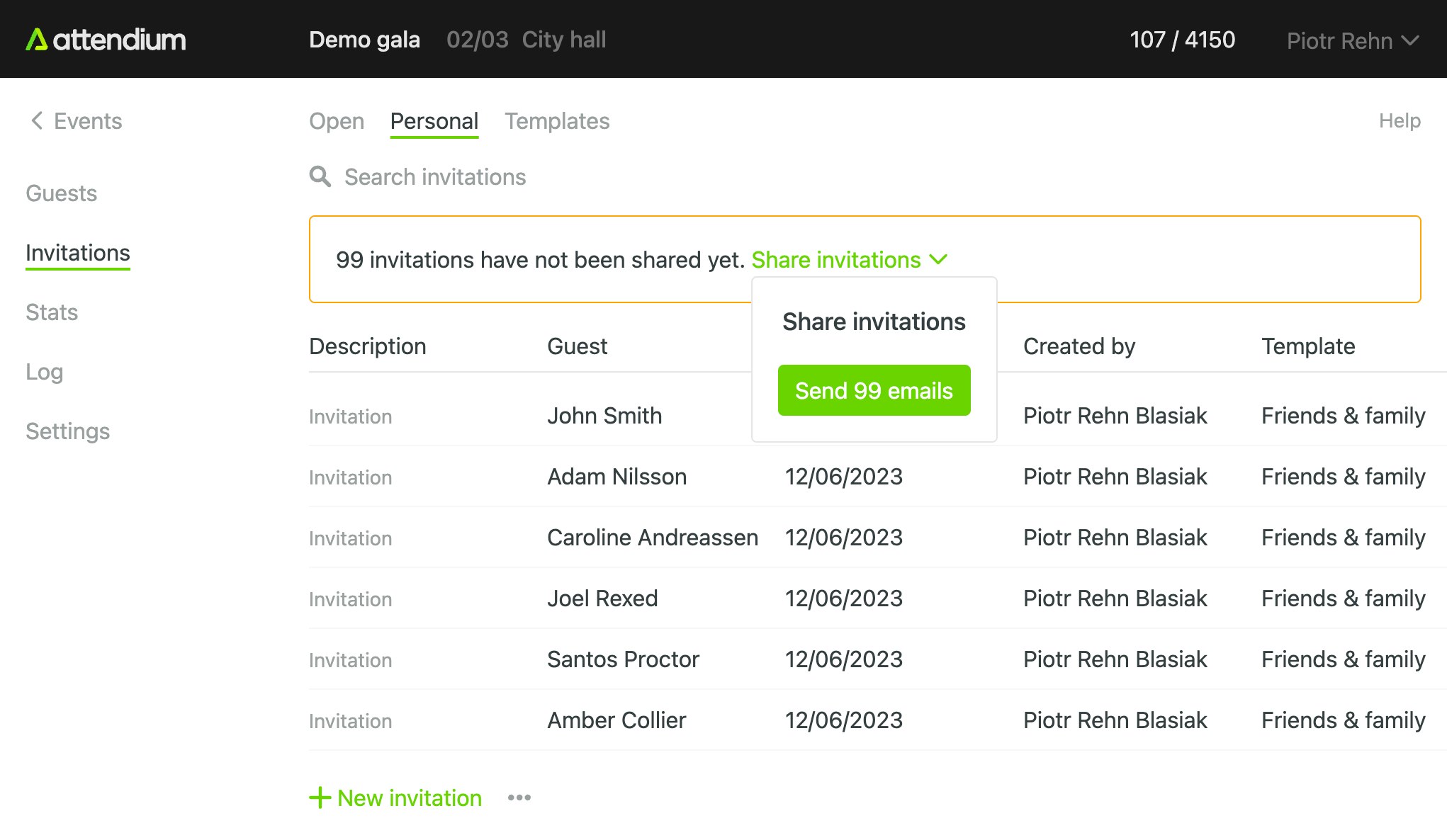
The system conveniently tracks the sharing status of invitations and notifies you about any unshared personal invitations. It will prompt you to perform a mass sendout for those invitations that have an email address specified, ensuring efficient distribution. This feature helps you stay organized and ensures that all relevant invitations are sent out.