Creating an open invitation
Go to Invitations (main menu) > Open. To create a new open invitation, select New invitation below the list of invitations.
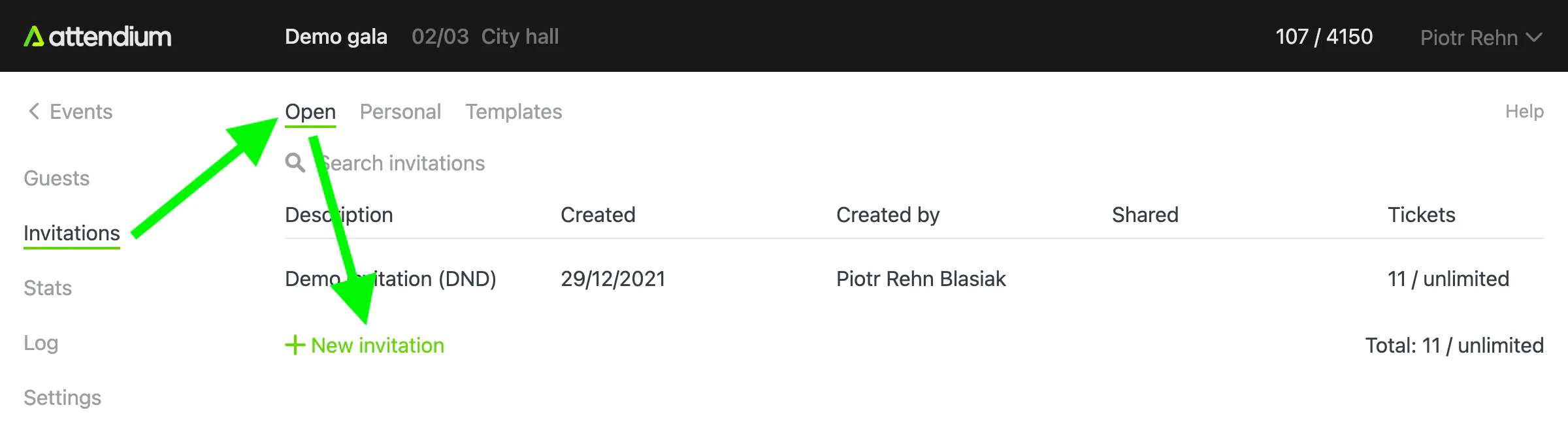
The new invitation page opens:
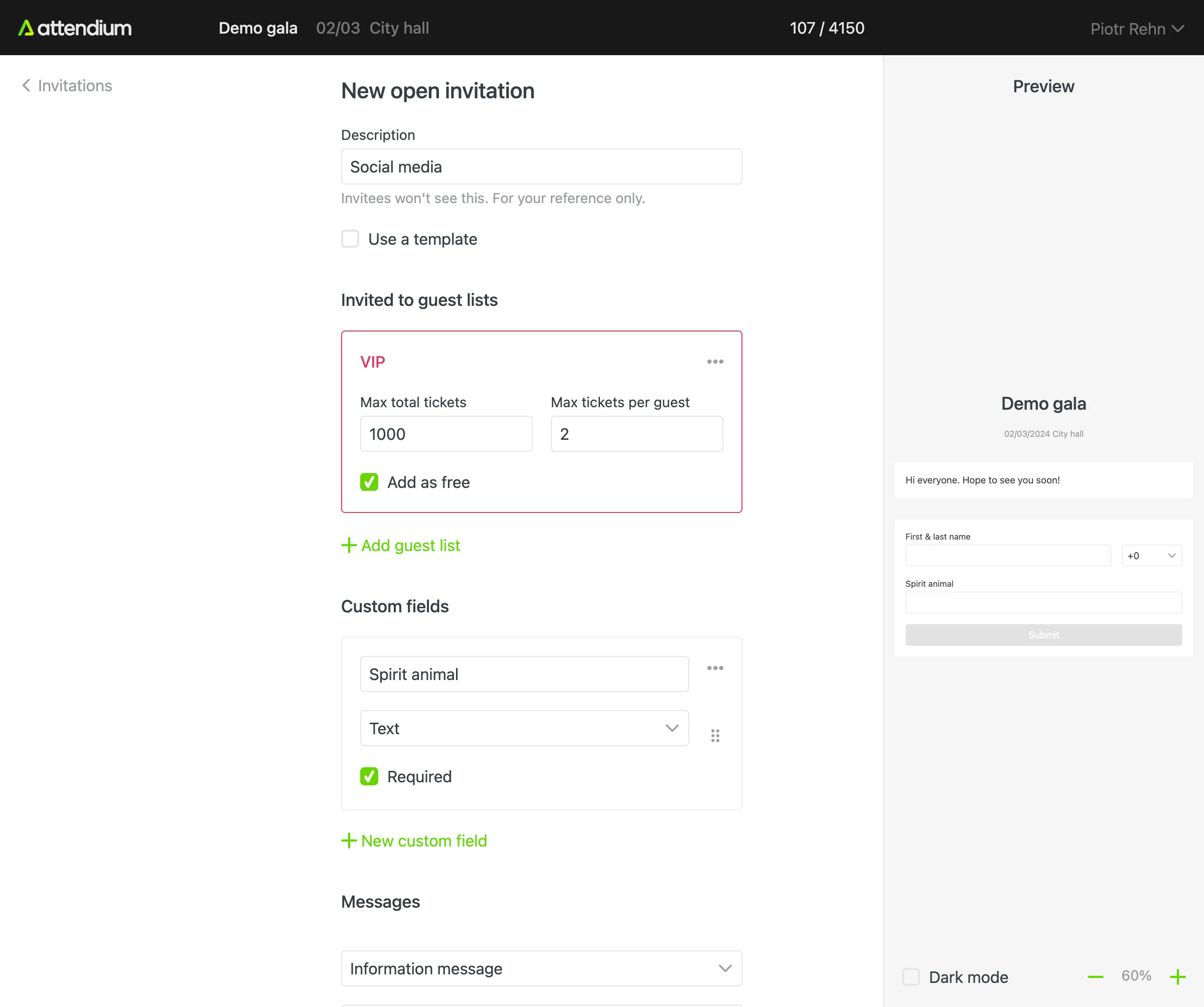
Use the preview to check your invitation before creating and sharing it. On smaller screens, select Preview after adding a guest list.
Invitation fields
Description
Start by giving your invitation a description. This description will be displayed in the list of invitations and is intended for your reference purposes only. For instance, you might enter "Social media" as the description for an invitation that you plan to post on various social media platforms.
Use a template
If you create several invitations with the same settings, select Use a template to take them from an invitation template, so you set them up only once. The title, custom fields and messages then come from the template, as do the guest lists if the template defines them. See Manage invitation templates.
Title
The title is the heading of the invitation page and, unless your account sends from a sender of its own, the sender name of the emails it sends. Leave it empty to use the name of the event.
Invited to guest lists
In this section, you choose the guest lists the invitation offers and how many guests can sign up. Select Add guest lists to add a guest list. For each guest list, Max total guests sets how many guests the invitation can add to that list, and Max guests per signup sets how many guests each signup can include. Select Free if the guests on that list should be added as free guests. Free is shown when Track free guests is on or Free is already selected for that guest list (see Add or import event guests).
NoteEvent-specific limits also apply to invitations. For instance, if the user that created the invitation is authorized to add only 100 guests to the VIP list and this quota is met, the invitation will indicate that the VIP guest list is full.
Custom fields
By default, the invitation collects the guest name and the number of people attending. If Send confirmations to guests is selected, or the invitation offers a paid guest list, the guest's email address is also collected as a required field. If you require additional information, you can set up custom fields using the form builder provided. This allows you to define the title and field type for each custom field. Choose the appropriate field type for your needs and mark fields as required if necessary. The available field types include:
- Text: This creates a single-line text field.
- Paragraph: Similar to the text field but offers a larger text box, suitable for longer sections of text.
- Multiple choice: Lets the guest select one option from a list of multiple choices.
- Checkboxes: Lets the guest select any number of options from a list.
- Dropdown: Lets the guest select one option from a dropdown menu.
- Email address: Specifically designed for collecting email addresses.
Messages
Although not mandatory, it is common for invitations to include presentational text accompanied by images and downloadable files. In the Messages section of the invitation, you can customize the content that appears at various stages of the invitation process:
- Information message: This serves as the primary content displayed when the invitation is first opened. Use it to introduce and describe your event, providing relevant details about the invitation's purpose.
- Confirmation message: This message is shown after a successful signup for your event, serving as a confirmation to the guest. You can use this opportunity to express gratitude, provide additional instructions, or offer any necessary follow-up information.
- Not enough spots message: This message is displayed when there are not enough spots left, either due to the limits set within the invitation itself or the event as a whole. Use this message to inform potential guests and provide alternative options, if applicable.
By customizing these messages, you can ensure effective communication with your invitees throughout the invitation process.
Send confirmations to guests
By selecting this checkbox, you can activate automatic email confirmations for this invitation. It is selected by default. The confirmation emails are sent from users@attendium.com, or from your account's default sender if it has one, and replies from guests go to the address you enter in Reply-to email address. Please note that the contents of the confirmation emails will be generated based on the invitation and event settings. Test the invitation thoroughly and make sure you are satisfied with both the invitation page and the emails before sharing them with your guests.