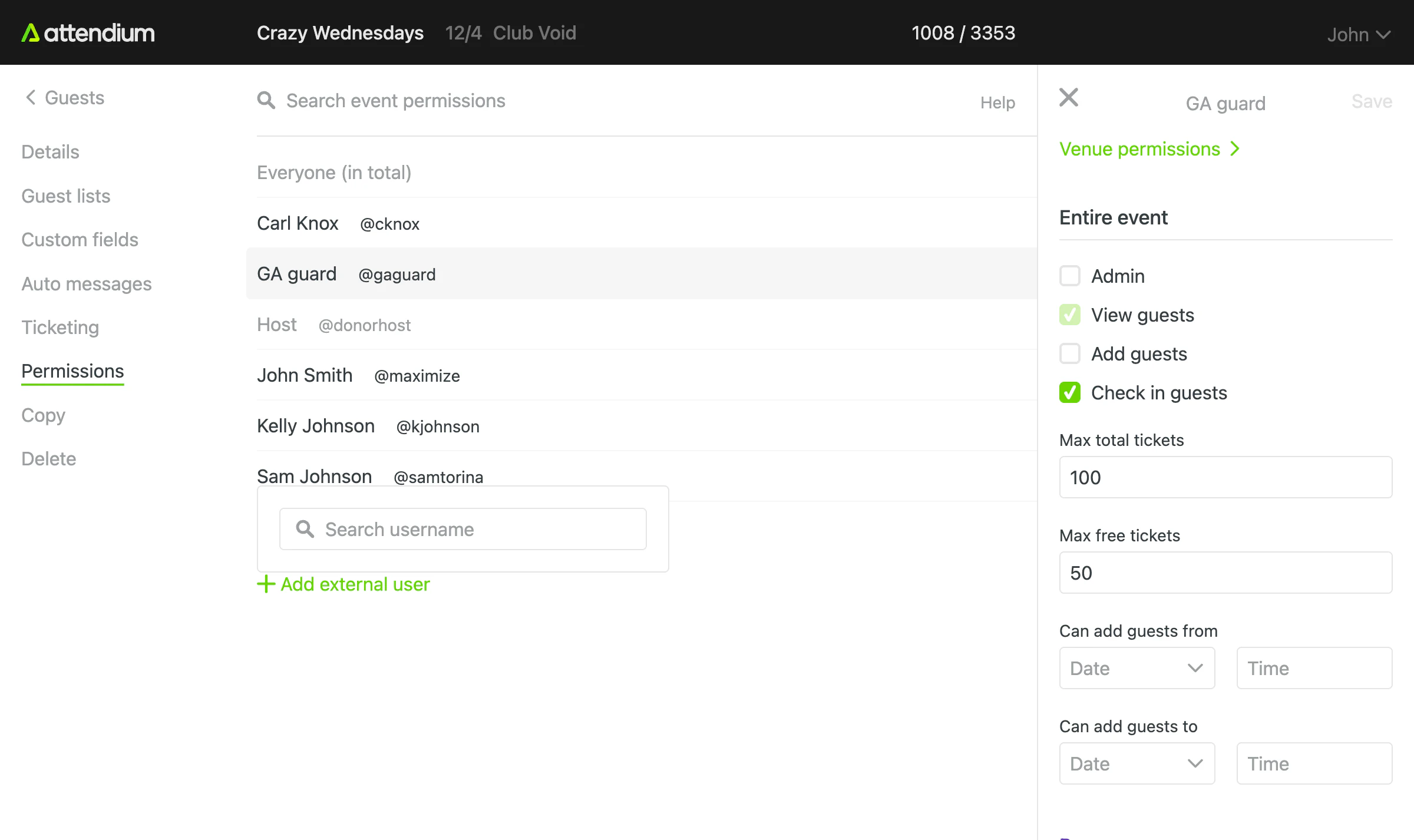
Giving external users access
When assigning permissions in Attendium—whether for an event or any other feature—you'll see a list of users associated with your account (organization). If the user you need already belongs to a different account, you can grant them external user access instead of creating a new user in your own account. This allows people who manage events across multiple accounts to work seamlessly from a single login, without having to switch between different user profiles.
Steps to give an external user access
- Go to the Permissions page of the item you want to share
- Select Add user (below the user list)
- Under Link an external user, enter the person's username
- Select Select next to the matching user. The user's permissions open in the panel on the right
- Configure the desired permissions
- Select Save