Creating a personal invitation
Go to Invitations (main menu) > Personal. To create a new personal invitation, select New invitation below the list of invitations.
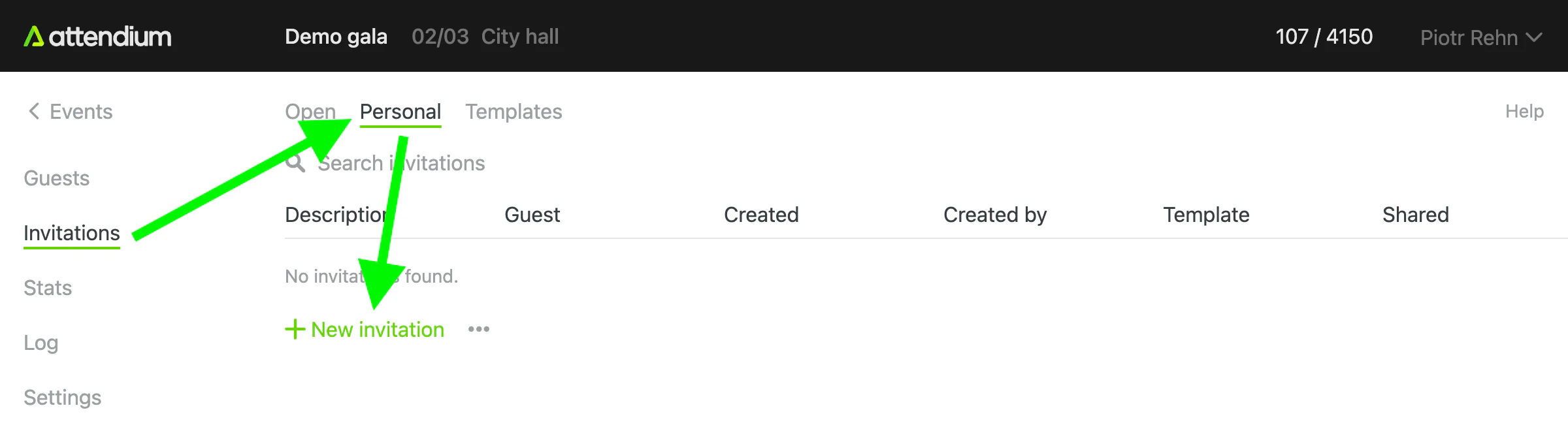
This will take you to the personal invitation creation page:
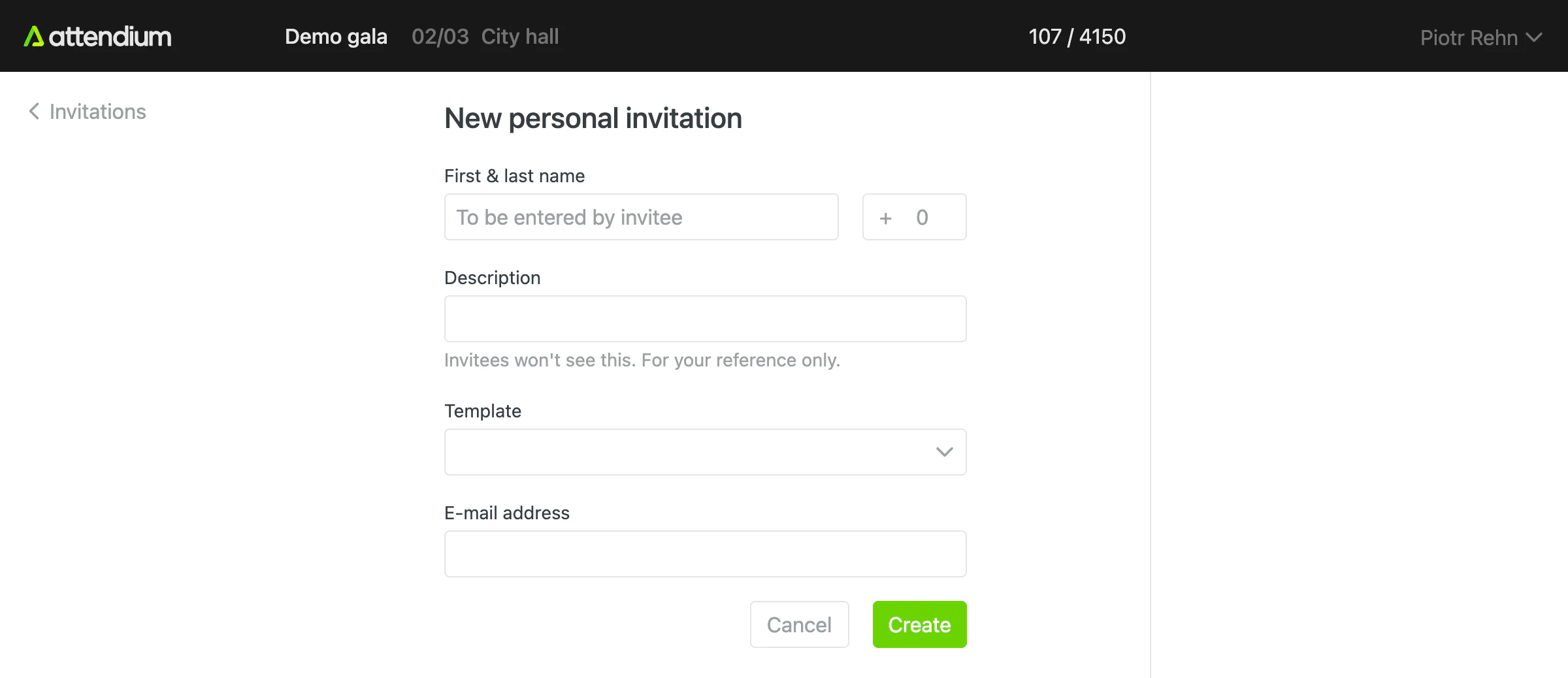
Once you have selected a template, use the preview on the right-hand side to see how the invitation page will look.
Fields
Template
Every personal invitation uses an invitation template. Personal invitations are usually created in large numbers, so the design and other invitation settings come from the template instead of being set up for each invitation.
First & last name
If you know the invitee's name, enter it here. The invitation is then locked to that name, and the invitee can't change it. If you leave the name empty, the invitee enters their own name.
Max total guests
This is the maximum number of guests the invitee can add, in total across all guest lists and including themselves. It is 1 by default; set a higher number to let the invitee bring more guests. This setting does not override the limits set in the template but applies in addition to them, so the lower limit wins. For instance, if the template has one guest list with a limit of 2 guests, and you set it to 3 here, the effective limit will still be 2.
Description
Enter a description for your own reference. Invitees don't see it. It is useful for noting who the invitation is for, such as "CEO of company X" when you don't have their name.
Email address and other details
The custom fields of the template appear here, so you can fill in details on the invitee's behalf. Fill in the invitee's Email address to be able to send the invitation by email. Entering an address doesn't send the invitation. Instead, the Personal tab offers to email all invitations that haven't been shared yet and have an email address, in one go. See Sharing invitations.
Invited to guest lists
If the template has no guest lists, choose here which guest lists the invitation offers.
Steps to import personal invitations from a file
To create many personal invitations at once, for example from a spreadsheet of names and email addresses:
- Go to Invitations (main menu) > Personal
- Select Import (below the list)
- Select your Excel or CSV file
- Select the Invitation template to use (if it has no guest lists, also fill in Invited to guest lists)
- For each column, choose what it holds, such as First & last name, Email address, Max total guests, Description or a custom field, or choose to skip it
- Select Import
Nothing is emailed yet. Share the new invitations from the Personal tab. See Sharing invitations.