Getting started
This guide takes you from logging in to checking in your first guests. Each section links to the article that covers its topic in depth.
Log in
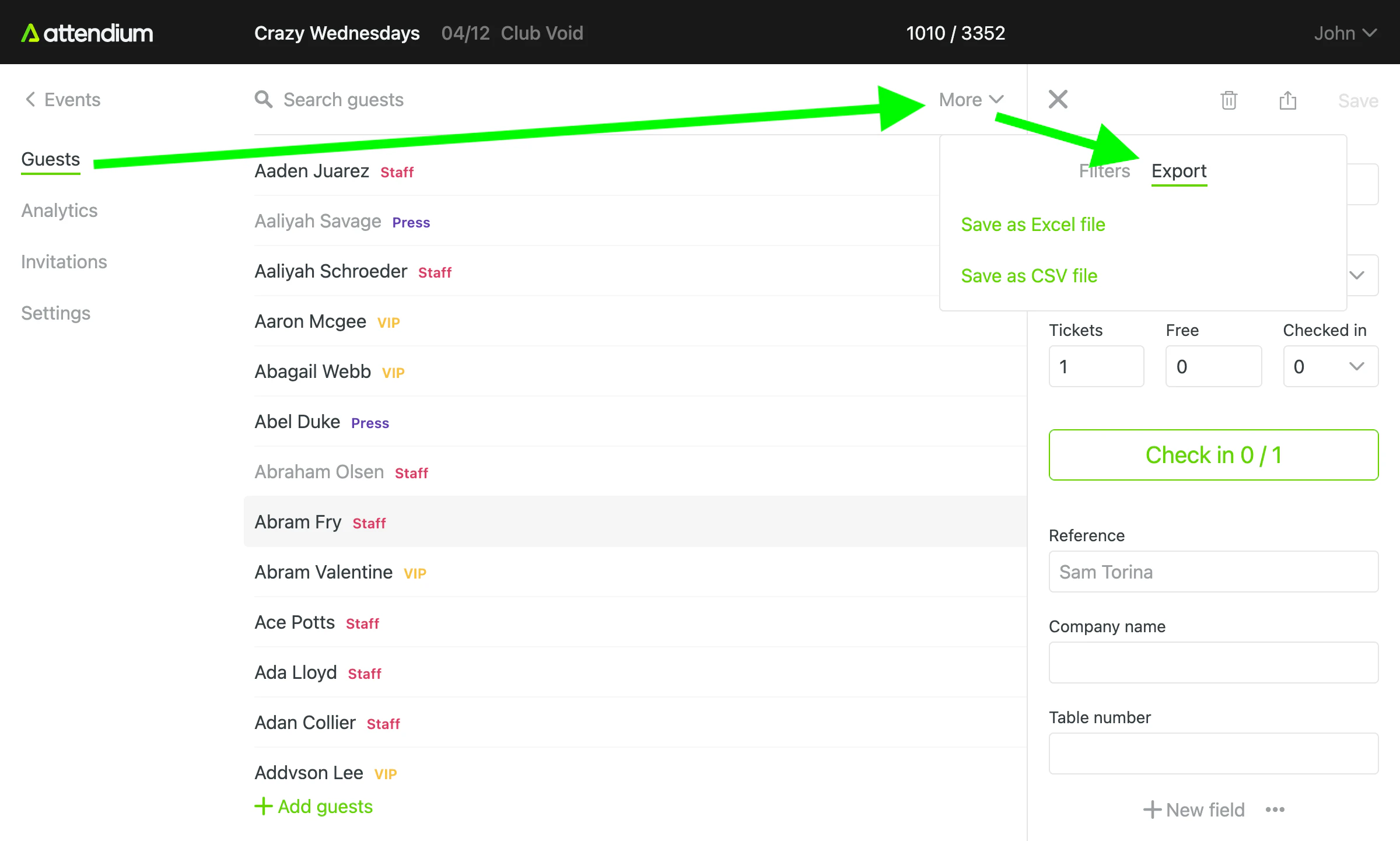
Log in through our website or our mobile apps from the App Store and Google Play (see Mobile app).
If a colleague created your user, the email you received links to a page that shows your Username, where you choose a Password and then select Set password. If you forgot your password, select Forgot your password? on the login page and enter your email address or username to receive a recovery link. Users created without an email address ask their account administrator to set a new password instead (see Manage users).
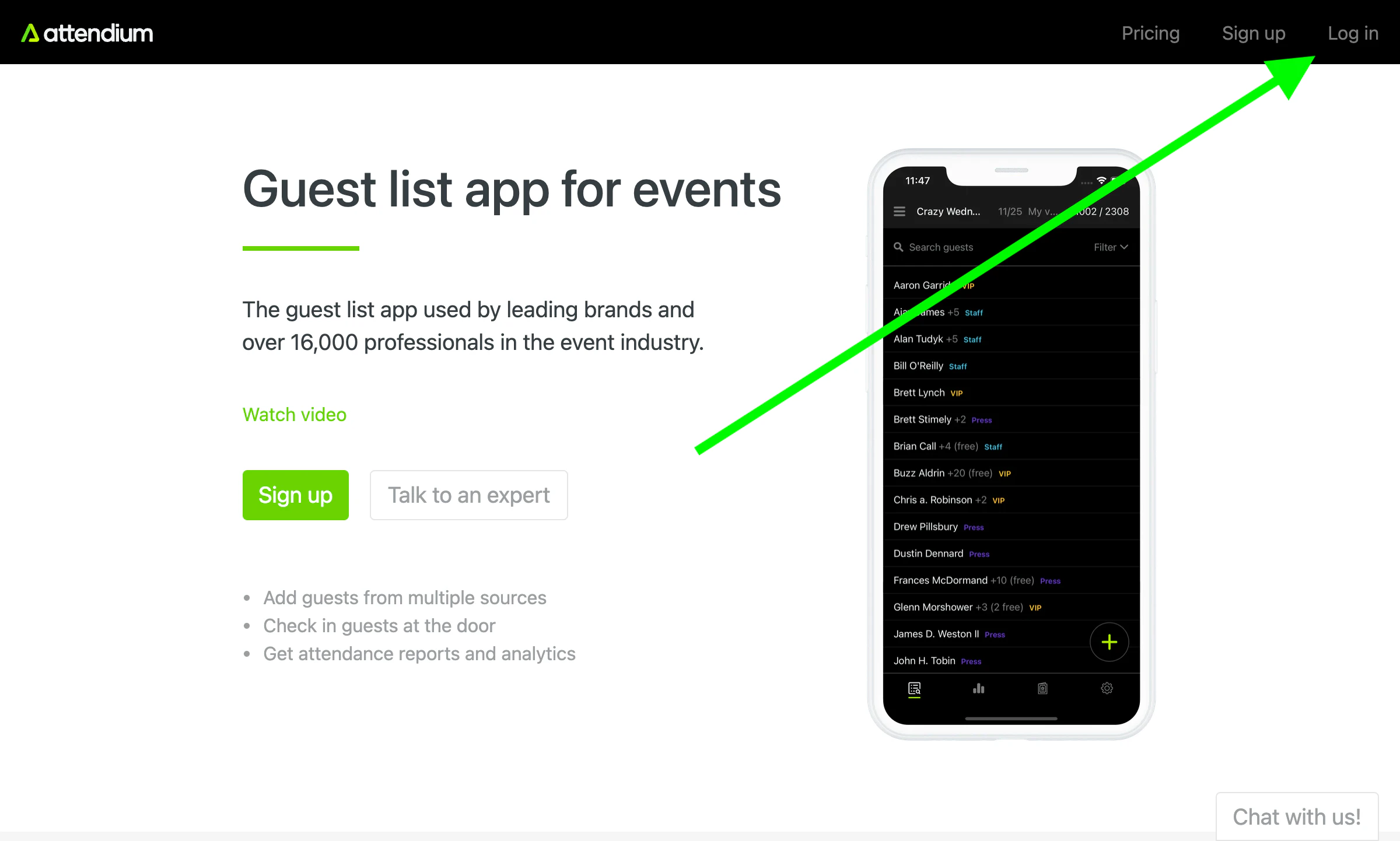
Events
To start, create a new event. Once you are in the event view, everything you see is refreshed automatically, so there is no need to refresh the browser to see added guests or other changes.
Guest lists
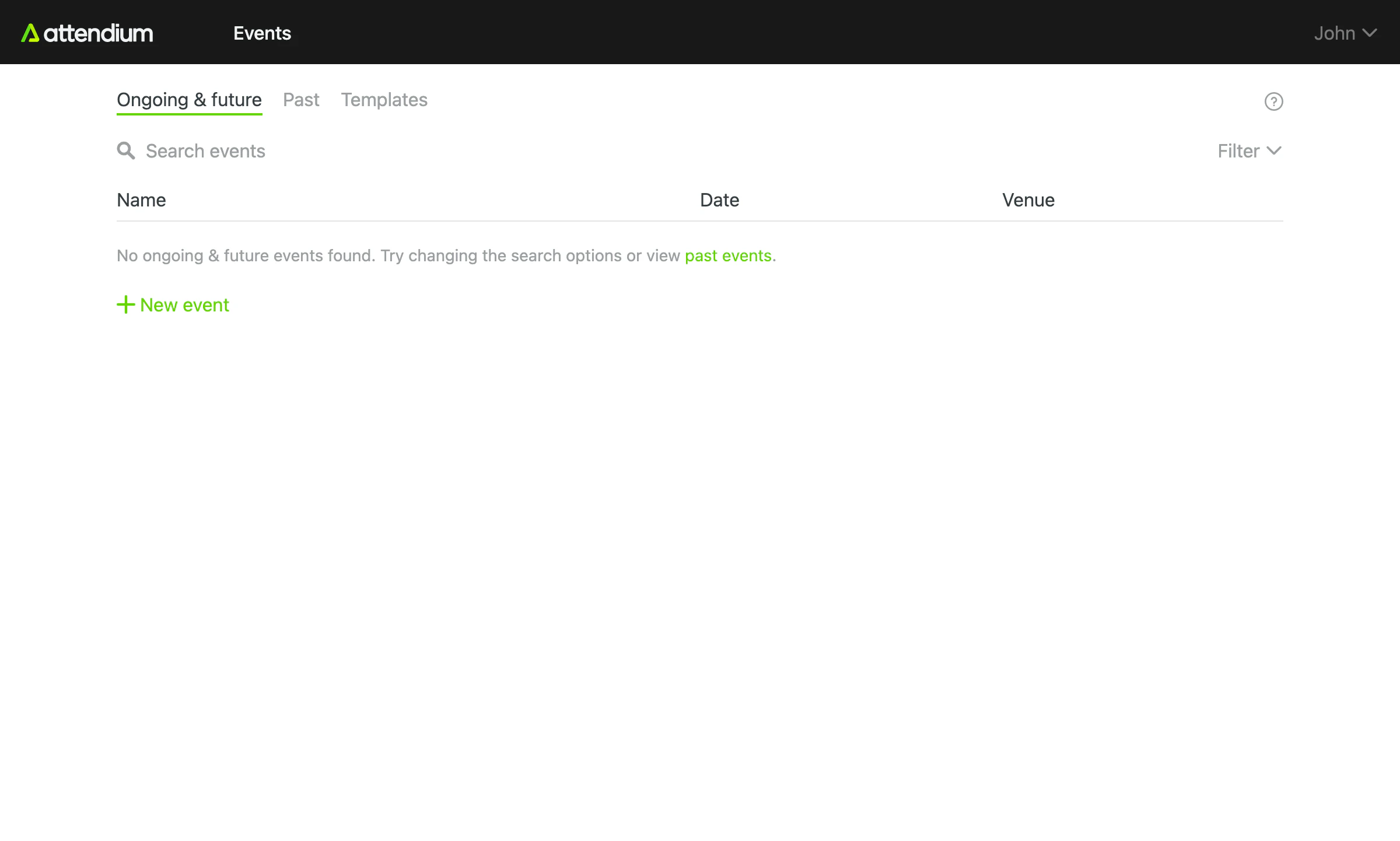
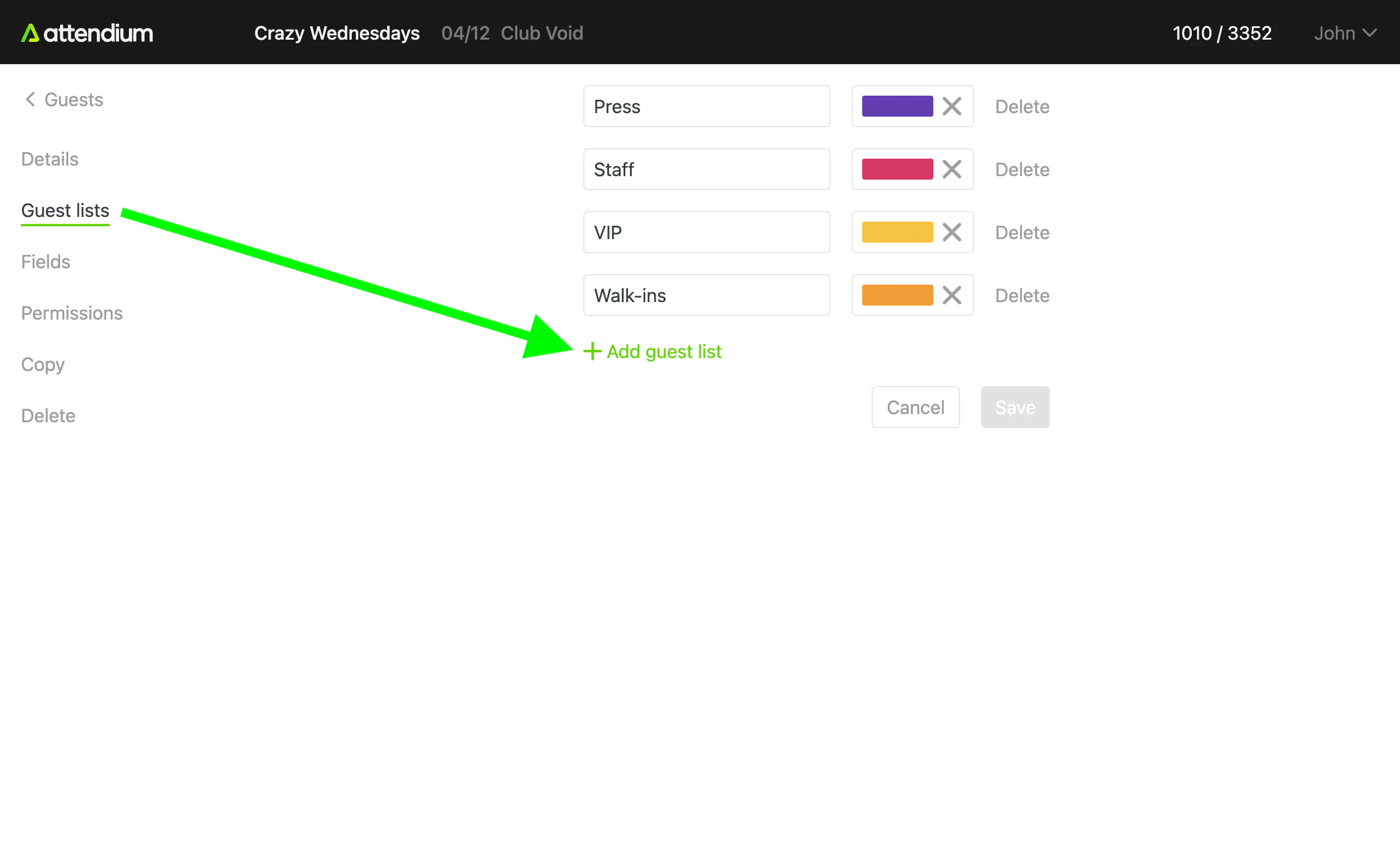
Every event has one or more guest lists where you add your guests. The default guest list is called "Guests", but you can create as many guest lists as you want and call them anything. Common names are VIP, Staff etc.
Guests
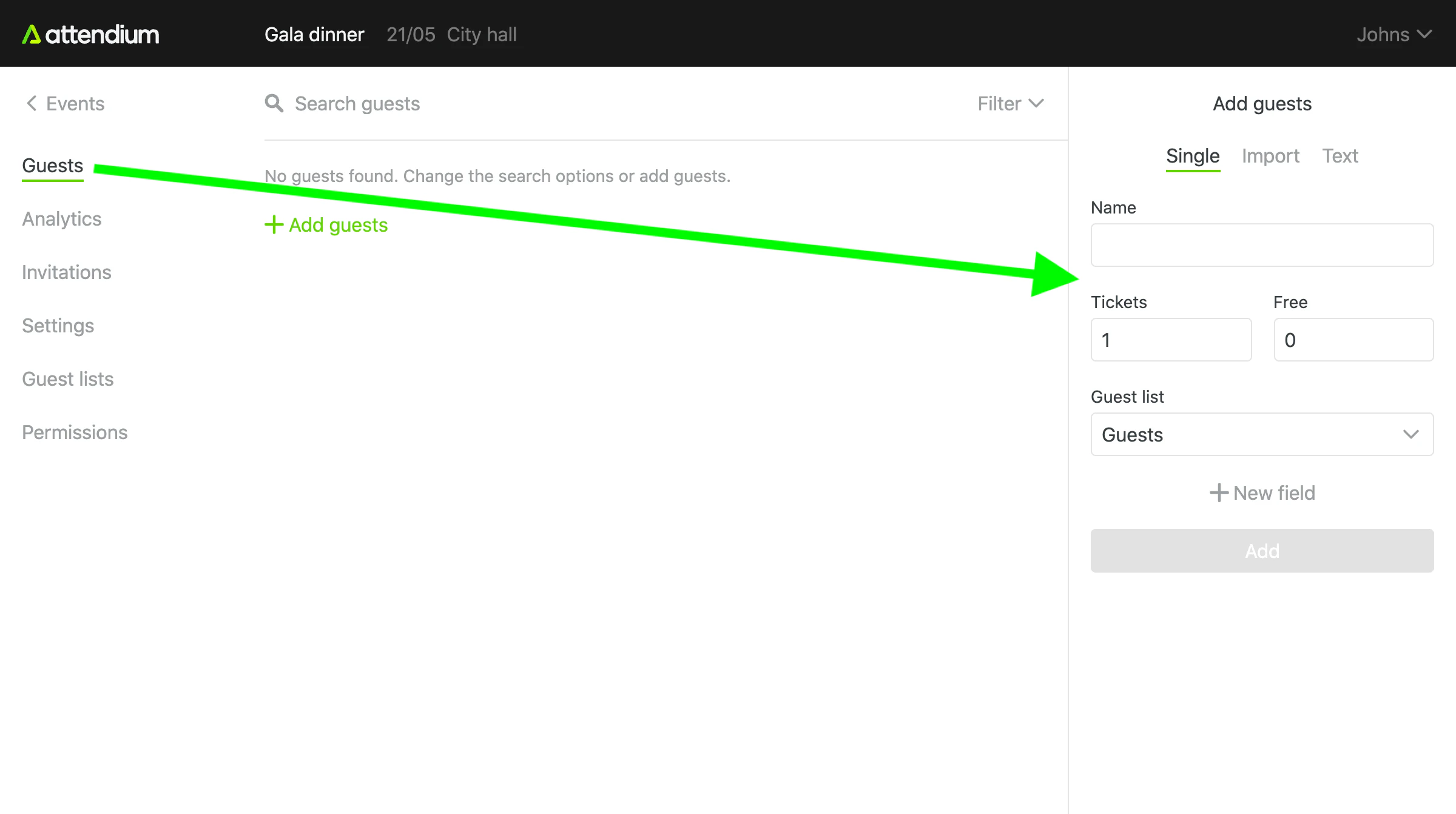
To add names to your event, go to Events (main menu) > your event > Guests > Add guests. Add guests one at a time under Single, or bring in a whole list at once under Import or Text. See Add or import event guests.
Check in guests
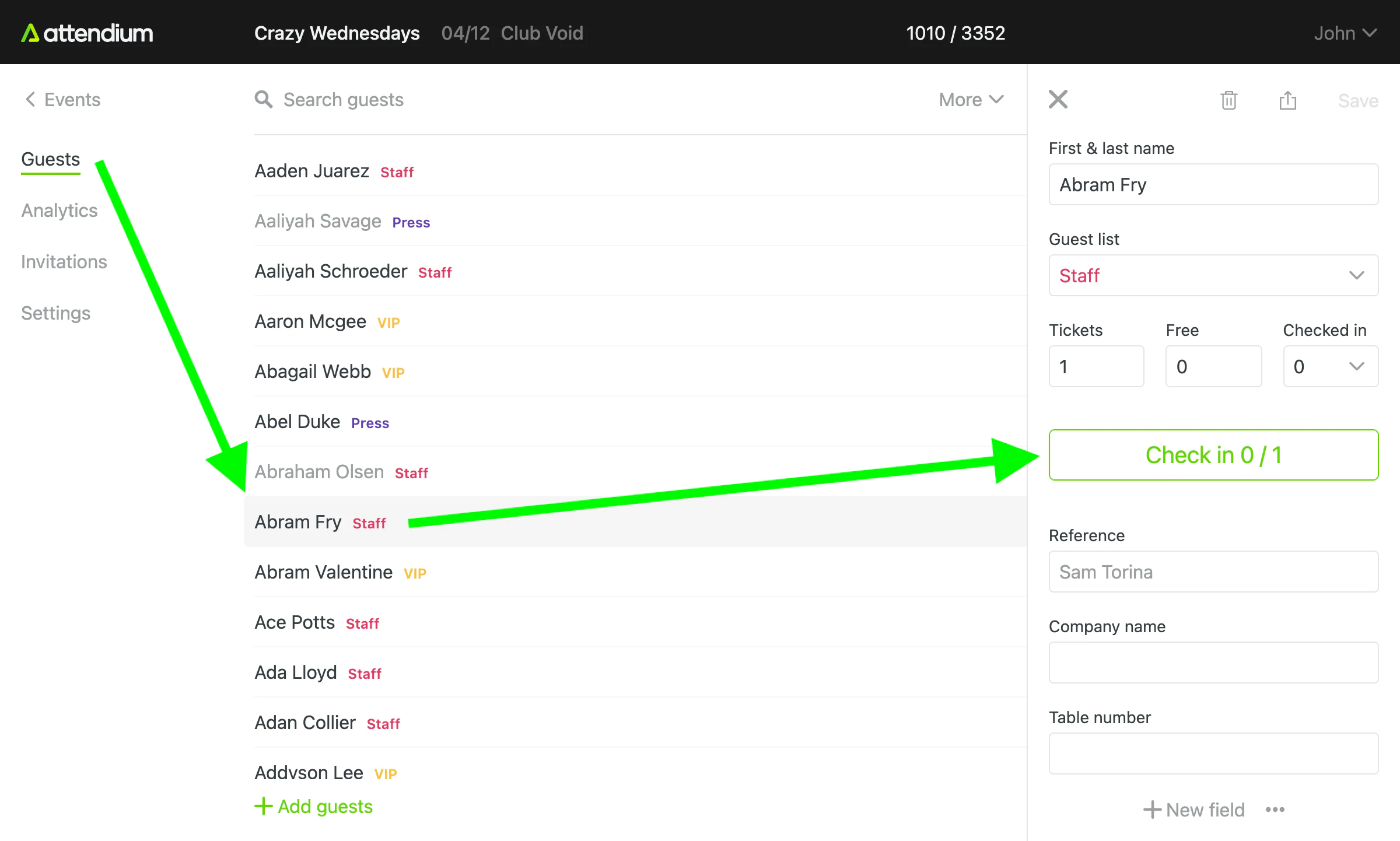
To check in guests, select a guest and then Check in. The counter on the button shows how many of the guests on that name are checked in, so if the name has more than 1 guest, select Check in once for each person who arrives. If the name has free guests, Check in free appears for them, next to Check in paying if it also has paying guests, each counting its own guests.
To reverse a check-in made by mistake, select the guest and then Edit check-ins, correct the number of checked-in guests and save. See Search and check in guests at an event.
Analytics
Go to Events (main menu) > your event > Analytics to see guest list additions and check-ins by user live, and the charts for one event. See View event analytics.
Go to Analytics (main menu) to compare figures across every event you can access. See Analytics.
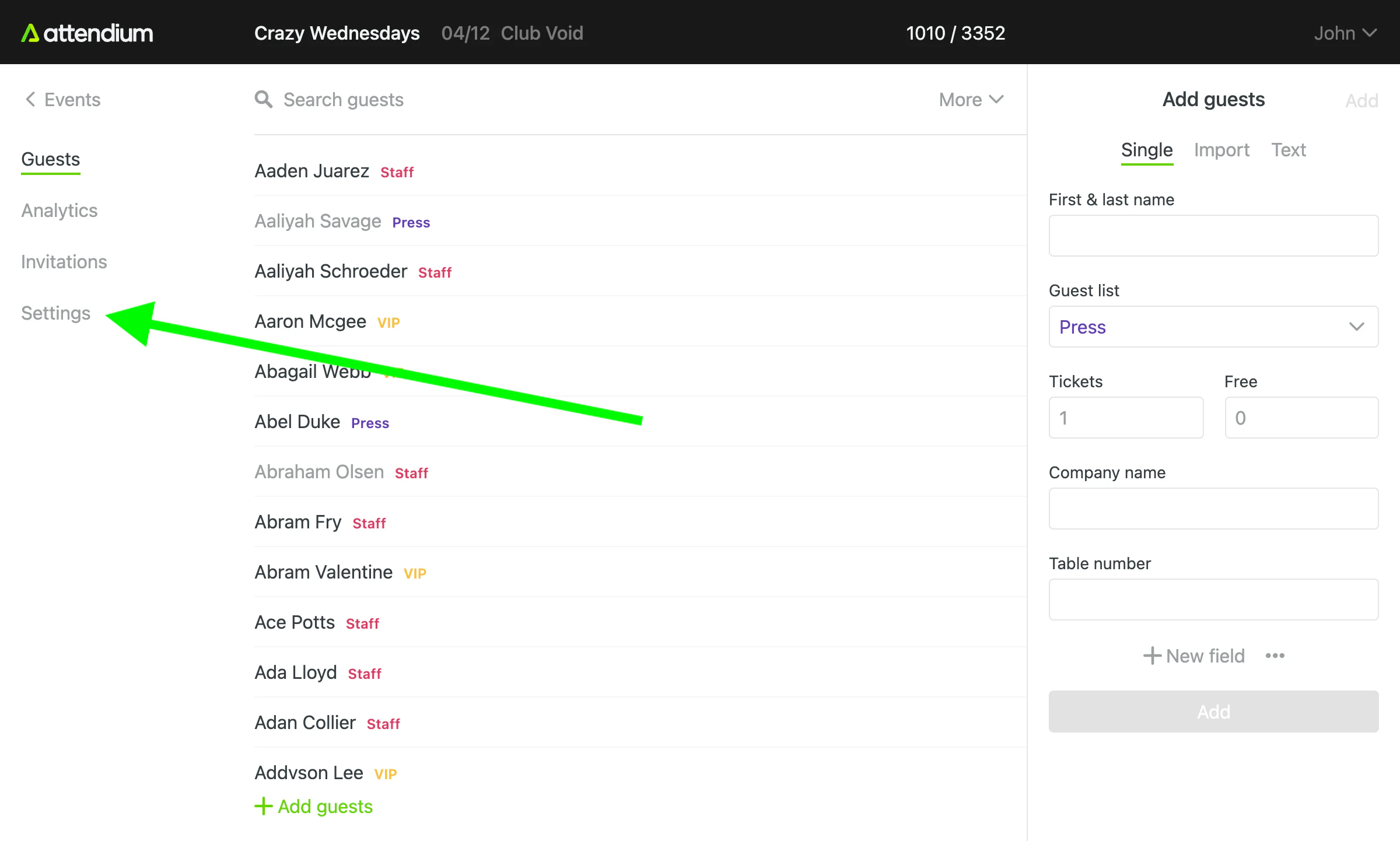
Export guests
Go to Events (main menu) > your event > Guests > Export to download your guests as an Excel file. The export includes only the guests matching your current filters. See Export event guests.